

These docs are for Greenhouse v3, which connects with OAuth. All new integrations and existing integrations should be set up or updated to v3. If you need docs for the legacy Greenhouse v1 integration (Harvest API key), click here.
Set up integration
1. Open your Integration settings in Metaview Navigate to https://my.metaview.app/?settings=integrations. If you haven’t previously signed in to Metaview you will be prompted to do so. Find the Greenhouse tile and clickConnect Greenhouse.
2. Enter your Greenhouse subdomain
Enter your Greenhouse account subdomain — this is the part before .greenhouse.io in your Greenhouse URL (for example, if your Greenhouse URL is https://acme.greenhouse.io, your subdomain is acme).
3. Authenticate with Greenhouse
Click Authenticate with Greenhouse. You will be redirected to Greenhouse to sign in and authorize Metaview’s access.
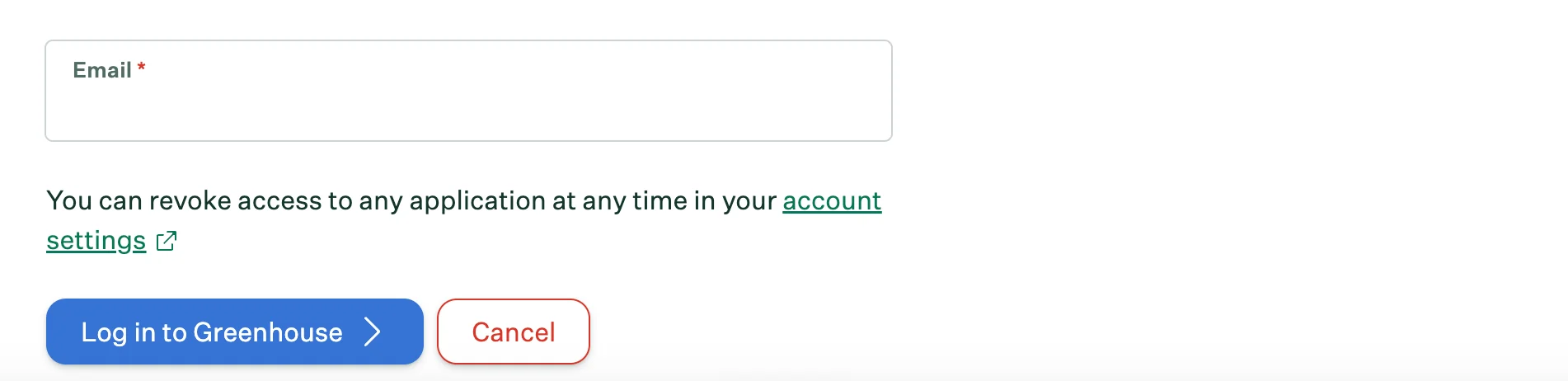
Authorize using a service account. This creates an organization-level account to own the connection, so the integration remains active even if your personal Greenhouse account changes or is deactivated.Click to authorize the connection.
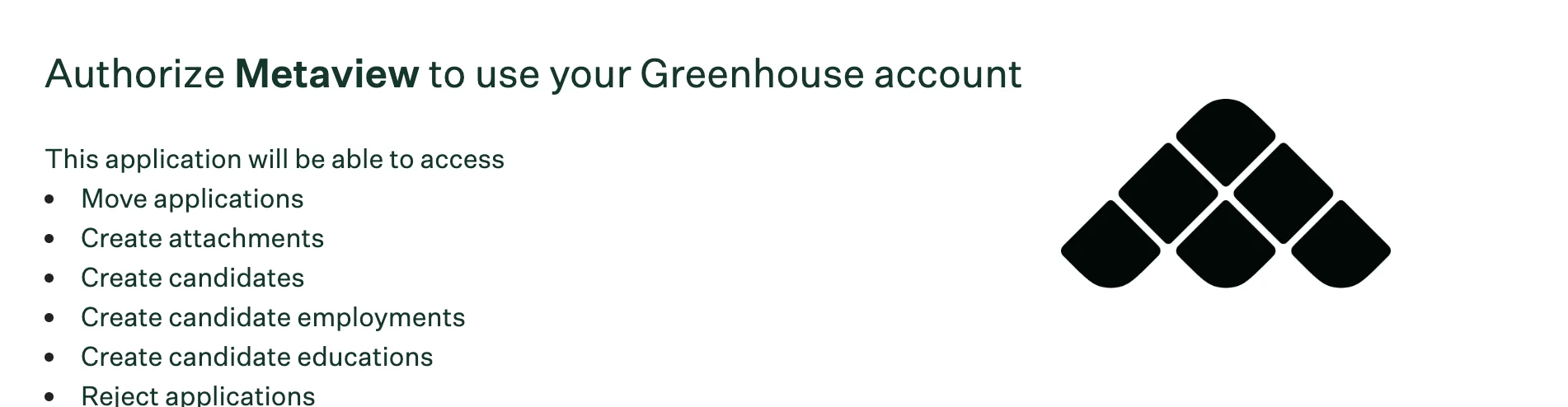
Authorize to complete the connection.
View list of permissions
View list of permissions
Metaview requests the following access. Some permissions are only used by optional features (for example, posting notes or adding sourced candidates); without them the related feature won’t be available.Applications:
- List Applications
- Create Applications
- Move Applications
- Reject Applications
- List Application Stages
- List Candidates
- Create Candidates
- List & Create Candidate Educations
- Create Candidate Employments
- List Candidate Tags & Applied Candidate Tags
- List Jobs
- List Job Posts
- List Job Hiring Managers
- List Job Interview Stages
- List Job Owners
- List Openings
- List Interviews
- List Interviewers
- List Scorecards
- List & Create Notes
- List & Create Attachments
- List Departments
- List Offices
- List Sources
- List Close Reasons
- List Rejection Reasons
- List Email Templates
- List Custom Field Options
- List Users
- List User Roles
- List User Job Permissions
If the connection fails, the most common cause is authorizing without Greenhouse Site Admin permissions. Verify you are a Site Admin and try again. If you have double-checked this and the connection still fails, please contact our team.
Posting to Greenhouse
Sometimes Metaview will comment on a candidate’s profile in Greenhouse. Examples of why Metaview will do this include:- adding a URL to the conversation to the candidate’s page
- posting the full Notes to the candidate’s profile
Features
Integrating your Greenhouse ATS to Metaview unlocks the following features:- Automatic scheduling directly from ATS
- Employees sync
- Ability to view your ATS scorecards from Metaview
- Ability to post your notes and TLDR to Greenhouse with one click
- Data enrichment of candidate profile (e.g. name, job title, stage, location, CV)
- Automatic addition of links to Metaview notes in Greenhouse
- Provide Access to calls for users with Recruiter and Hiring Manager roles in ATS
- Use Application Review to screen, progress, and reject candidates
- Use Sourcing to search through your ATS for potential candidates
- Add new candidates to your ATS that have been sourced
on the``Greenhouse logo go to the matched entry in your ATS.
Scorecards
The scorecard will be available whenever Metaview successfully matches your call to a Greenhouse interview that includes a scorecard. Click onFill Scorecard to see the relevant Greenhouse scorecard for your interview.
To improve the relevance of what is auto-filled, make sure your scorecard headings and field descriptions are as clear and specific as possible. For example, instead of “General Thoughts,” try “Candidate’s Communication Style (with examples).”
Scorecard Submission Browser Extension
Metaview offers a Chrome Extension you can use to automatically fill our your scorecard, direct within Greenhouse. You can also download and use this browser extension with the Microsoft Edge browser using the same instructions.
Simply download the Metaview Chrome Extension, open your scorecard in Greenhouse, and Metaview will extract objective sections of your scorecard and automatically fill it with information shared by the candidate in the interview.
1. Add the Extension to Chome
Navigate to the Chrome Web Store and navigate to the Metaview Chrome Extension. Click
Add to Chrome and then Add Extension.
Autofill with Metaview to fill in the relevant sections from the scorecard. Metaview will not overwrite any sections you’ve already filled in.
3. Review and Personalize the Outputs, Add in Your Evaluation, and Submit
When Metaview finishes processes and posts the relevant updates, review the output, personalize, fill in the relevant scoring fields that have intentionally been left blank, and clickSubmit Scorecard.
Sourcing
It is possible to add candidates you have found with AI sourcing to your Greenhouse instance. The only prerequisites to this are the following:- You have the Metaview-Greenhouse integration set up, as detailed above
- You have added a
Metaviewsource to Greenhouse. This is so that candidates sourced through Metaview can be attributed correctly.
Troubleshooting
When a call was not scheduled through Greenhouse, Metaview will still attempt to match your calls scheduled by other means to relevant entries in your ATS. This can take up to 30 minutes if your call was not scheduled in advance. If ATS data sync is not successful or if your scorecard does not appear automatically, the most common reasons why are:- Call or candidate is missing in the ATS
- Duplicate calls or candidates in the ATS
- Data mismatch between Metaview invite and information in ATS (e.g. wrong participants, missing participant, wrong candidate)
- Insufficient information to match call or candidate (often occurs when using Inviting to an ongoing call or Upload recordings options).
- The meeting type is NOT set to Job interview or Debrief. Please see Call details for more information.
Disconnect your Greenhouse integration
You can disable your Metaview integration directly from within your Metaview account underSettings →Integrations then select Disconnect Greenhouse.
This immediately disconnects Metaview from your ATS data. Please note however that any calls that have already been scheduled may still go ahead. Please see Disabling Metaview for details on how to also make sure that the Notetaker bot doesn’t join any future calls.